ShemenMusic Desktop
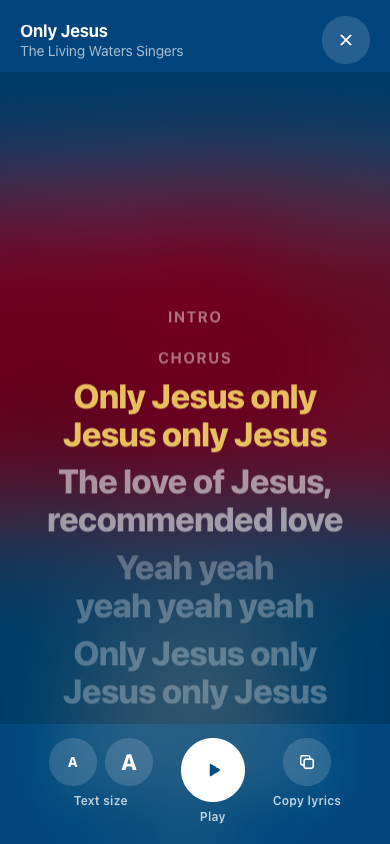
One Mac plays the music and puts the words on the church screen.
In development. For a Mac with an Apple chip. Windows later.

Take up your cross and follow Jesus
Take up your cross every day
Don’t be ashamed to say that you know Him

Don’t be ashamed to say that you know Him
Take up your cross every day
Made for the sound desk.
ShemenMusic Desktop is for the person who runs the music and the screen during the service. One laptop does both jobs.
It plays the tracks itself.
Every song in the library is inside the app, the newest releases too, each with its words timed to the music. You do not need a second phone or music player for the sound.
Because the same computer plays the music and shows the words, the words stay in step with the song.

Words for the church, controls for you.
Plug a TV or projector into the Mac. The big screen shows only the words, in large type, for the singers and the church. Your laptop keeps the controls, where only you can see them.
Plan the service before it starts.
Put the songs in a set list, in the order of the service. On the day you go down the list one song at a time.
You will not be searching for the next song while the church waits.
Check it first. Then go live.
Preview shows you the next words on your laptop only. When they are right, press Go live and they appear on the big screen.
One key for each problem.
When something goes wrong in front of the church, you should not have to look for a button.
Blackout
The big screen goes black straight away, so the church sees nothing while you fix it.
Clear screen
Takes the words off the big screen, so nothing is showing while you sort it out.
Move a line
The arrow keys step one line back or forward if the words fall behind the singers.
No internet needed.
Everything lives on the Mac. If the church Wi-Fi drops in the middle of the service, the music and the words carry on.
How you’d use it on Sunday.
Before the service, make the set list.
Open ShemenMusic Desktop and put the songs in the order you will sing them.
Plug in the big screen.
Connect the Mac to the TV or projector with a cable. The words go on the TV, and the controls stay on your laptop.
Check the first song.
Click the first song. Its words appear in Preview, on your laptop only.
Go live.
Press Go live. The track plays through the sound desk and the words go up on the big screen, line by line.
If something goes wrong, one key.
B blacks out the screen. Esc clears the words. The arrow keys move a line back or forward.
What you need.
A Mac with an Apple chip
Any Mac with Apple M1 or newer. To check, open the Apple menu and choose “About This Mac”. The line called Chip should start with Apple.
A TV or projector
Any screen the Mac can plug into. It shows the words while your laptop shows the controls.
The right cable
Usually an HDMI cable. Newer Macs may need a small adapter to take it.
A cable to the sound desk
So the backing track plays through the church speakers, not the laptop’s own.
Windows is not supported yet. A Windows version will come after the Mac one.
Questions people ask.
When can I download it?
ShemenMusic Desktop is still being built. The Mac version comes first. A Windows version will follow later.
How is this different from the ShemenMusic app?
The app is for each singer, on their own phone. Desktop is for the church: one Mac at the sound desk that runs the music and puts the words on the big screen for everyone.
How do I know if my Mac will work?
Click the Apple menu in the top corner of the screen and choose “About This Mac”. If the line called Chip says Apple M1, M2 or a later number, your Mac will work. If it says Intel, it is too old for the first version.
Does it need the internet?
No. Once it is installed, it runs without internet, so a weak church connection will not stop the service.
Will it work with our projector?
If your TV or projector can show a laptop’s screen through a cable, it will work. Most use an HDMI cable, the same kind a TV box uses. Newer Macs may need a small adapter for it.
The words are too small from the back of the church.
Make them bigger in the settings. The words stay one size on every page. When a part of the song is long, it moves onto another page instead of shrinking.
Something went wrong in the middle of a song. What do I do?
Press B and the big screen goes black straight away. Press Esc to take the words off. Then pick the right line and press Go live again.
Do we still have to switch the TV over from another program?
No. When the Mac is the only thing plugged into the screen, there is nothing to switch during the service. The words go up when you press Go live.
Coming to the Mac first.
ShemenMusic Desktop is in development. The download will be on this page when it is ready.
Singing from your own phone? See the ShemenMusic app